SFTP
Source Setup
Step 1. Whitelist Etleap IP Addresses in your SFTP Server
Depending on where your server is hosted, you may need to whitelist Etleap’s IP addresses. Review the IP Whitelisting article for more information on which to use.
Step 2. Choose desired Authentication Method
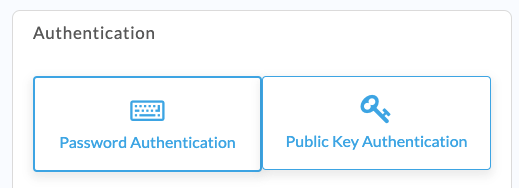
SFTP connection in Etleap can be authenticated one of two ways:
- Using password authentication - simply use the username and password you have setup.
- Using public key authentication - to use this method, in your SFTP server, whitelist the Etleap public key displayed in Public Key field.
Additional Properties
PGP Decryption
Etleap supports automatic decryption of PGP-encrypted files stored on your SFTP server. To enable this, provide your PGP secret key in the PGP Secret Key field during connection setup. When configured, Etleap will automatically decrypt any PGP-encrypted files before processing.
Key Considerations
- PGP decryption is supported for CSV and Excel file types.
- The PGP secret key must be in ASCII-armored format.
- The secret key must not be passphrase-protected.
- Etleap detects PGP-encrypted files as files that end with
.pgpe.g.data.csv.pgp. - The configured path for a pipeline can contain a mix of encrypted and unencrypted files.
What Data is Available?
Any data stored on the SFTP server can be ingested through Etleap as long as it is one of the Supported Types. Depending on your use case, you can set up the pipeline to use any of the modes supported for file-based pipelines.
For compressed file formats, only a single file per archive is currently supported.