X
X connections give you access to your account and advertisement campaign data.
Source Setup
You will need a X App in order to create a connection with Etleap. Please perform the following steps to create the App in your X account.
Step 1. Apply for a Developer Account
If you haven’t created an app with X before, you’ll need to apply for a X Development Account. If you already have a development account, skip the first section and proceed to Step 2. Create your X App.
- Go to X’s developers portal app page .
- Complete the form and submit the application.
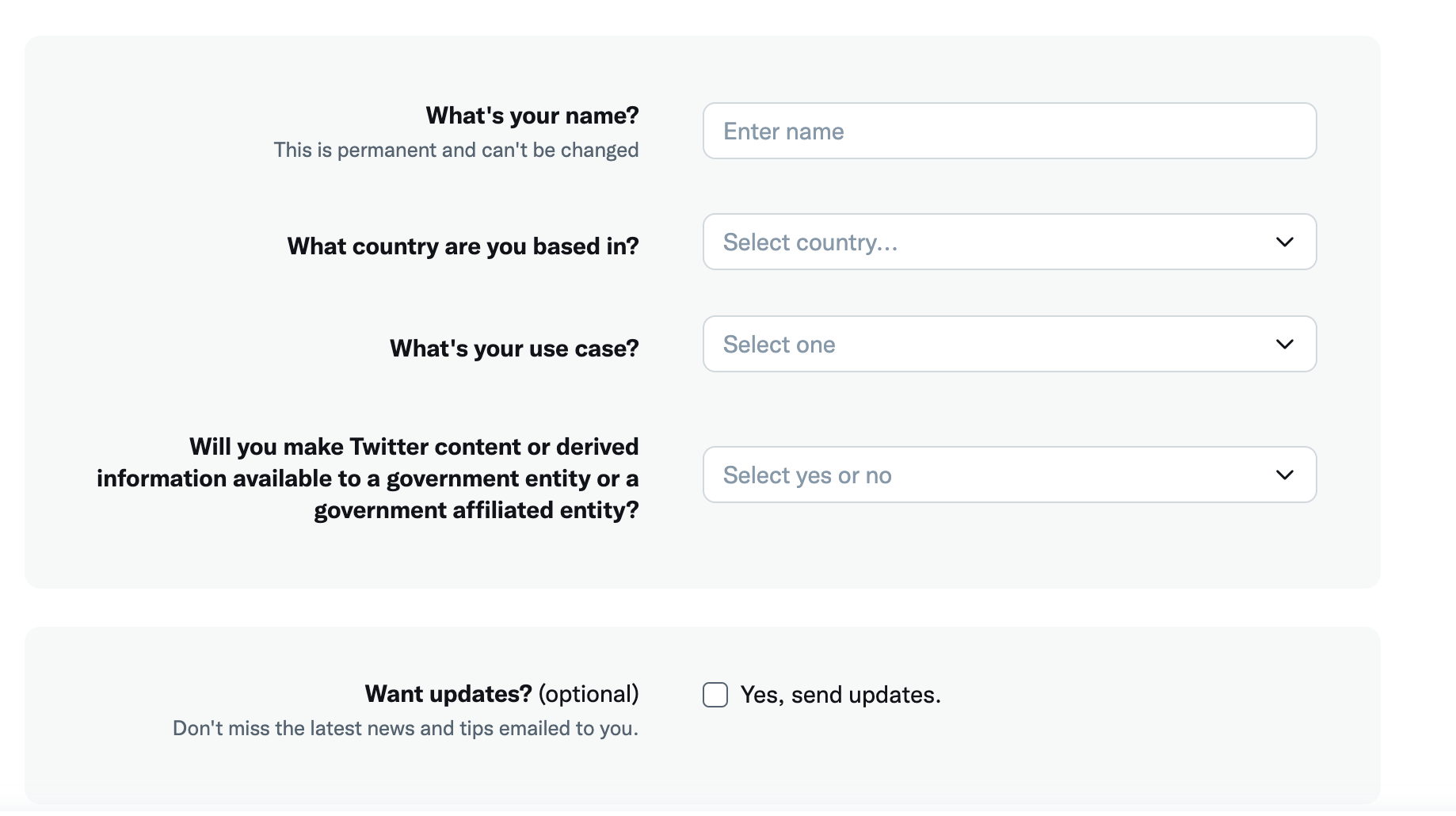
- Verify your email address with X to create the new App.
Step 2. Create your X App
- Go to X’s developers portal app page .
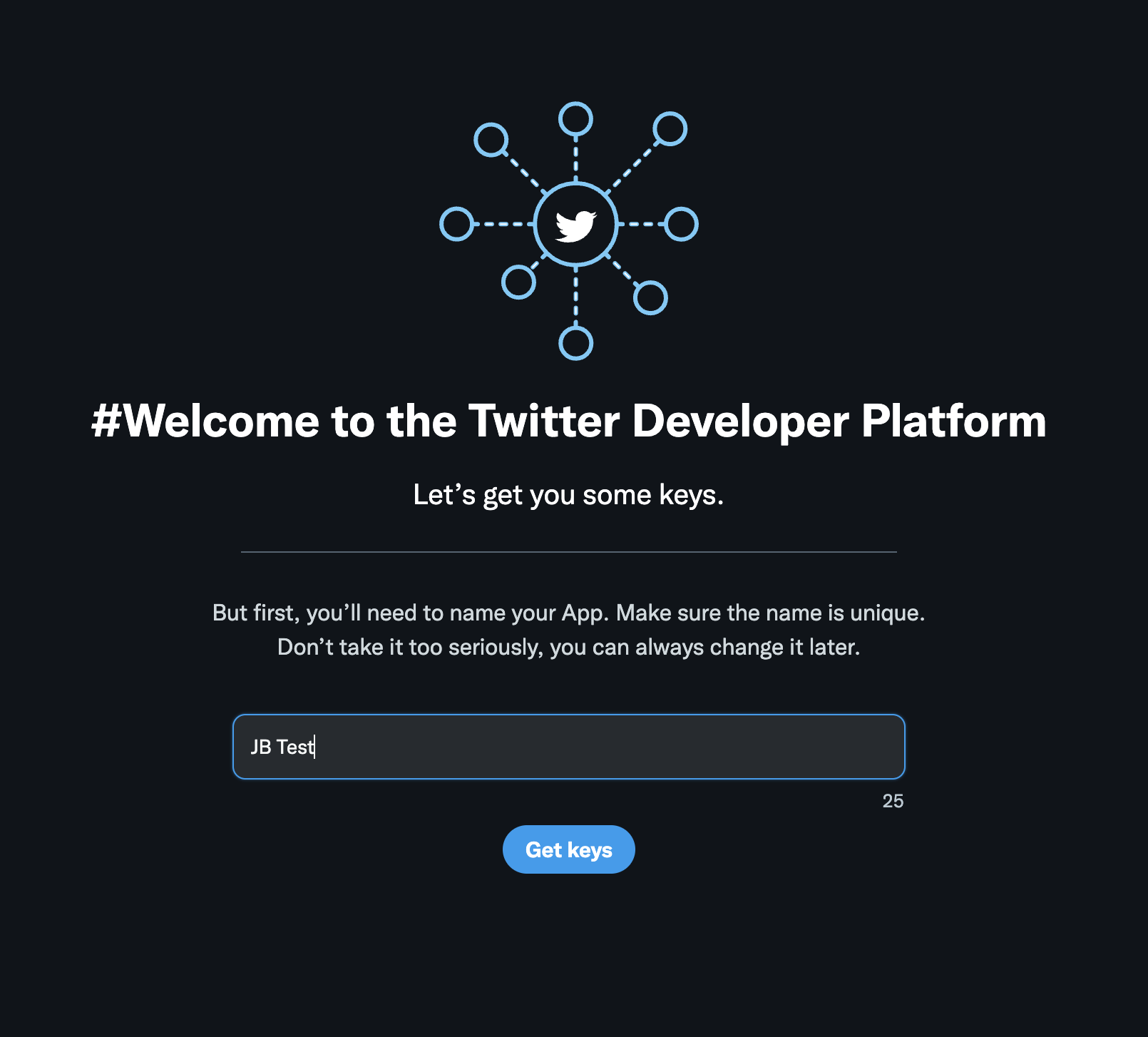
- If you just created your developer account you will be prompted to create an App. Name your app and go to step 5 below.
-
Navigate to your developer dashboard and select Add App.
-
Enter your App name (e.g., “MyCompany Etleap App”).
-
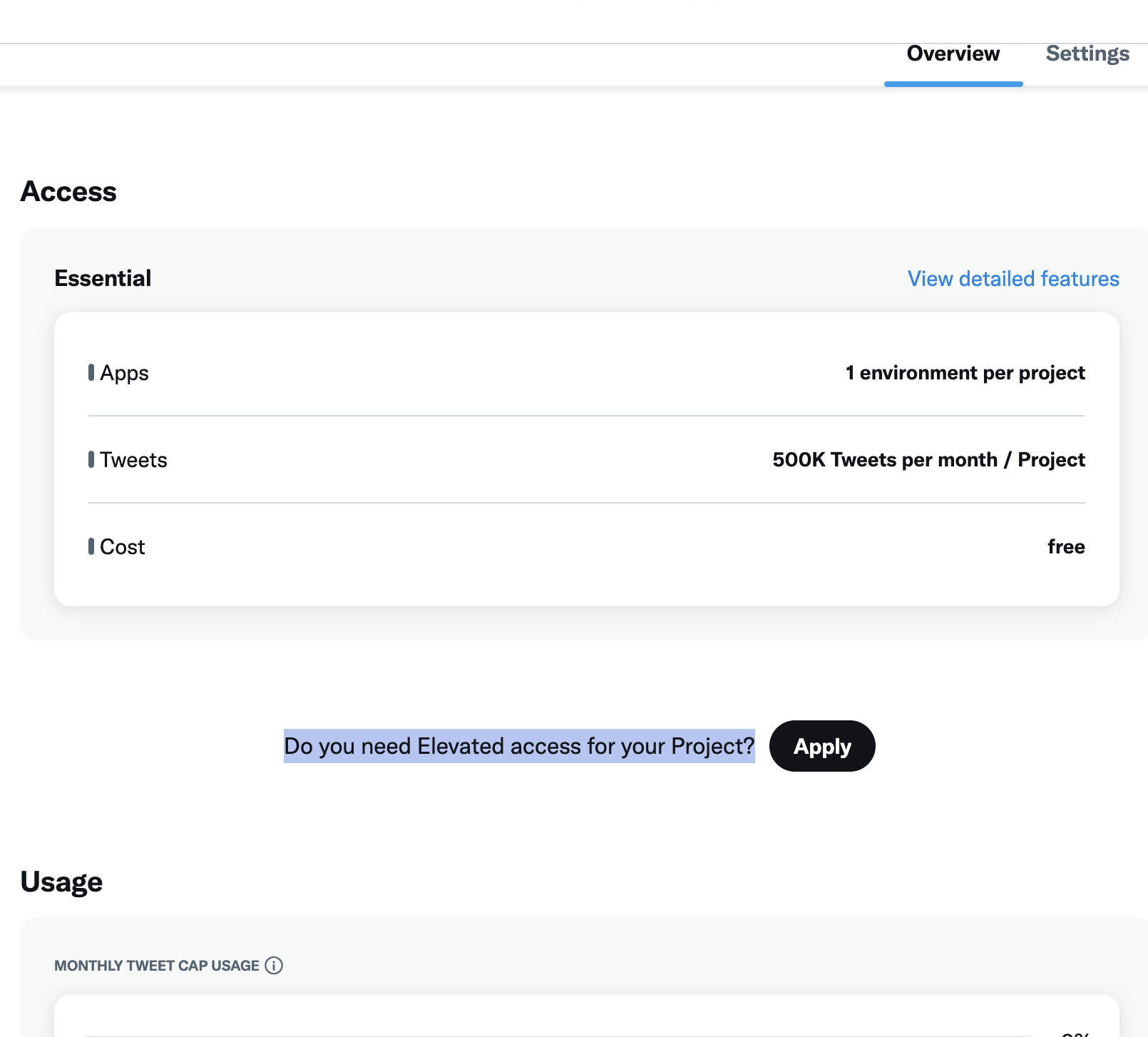
Go to Products → X API V2 to check if you have Elevated Access.
-
If you don’t, click Apply.
-
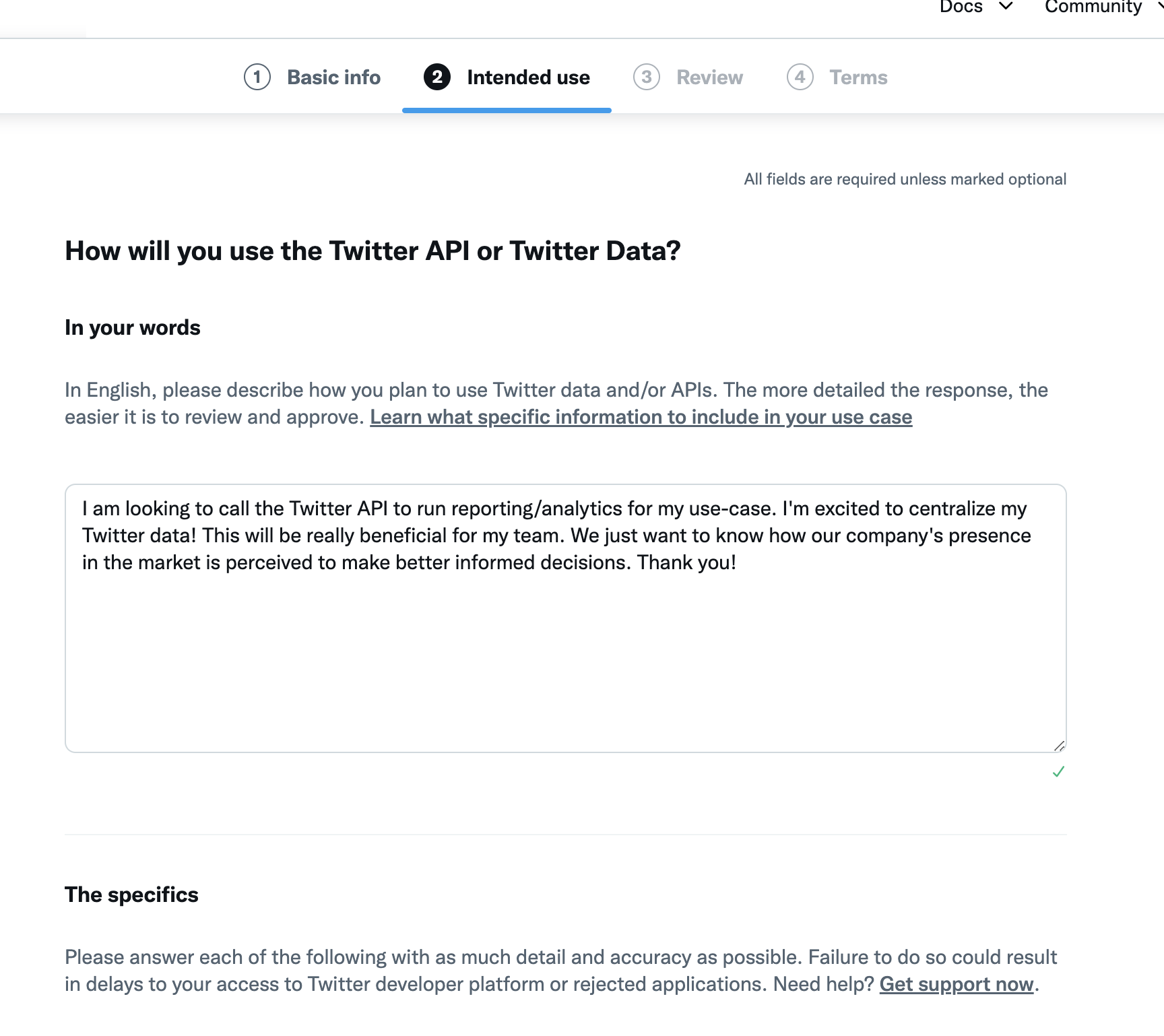
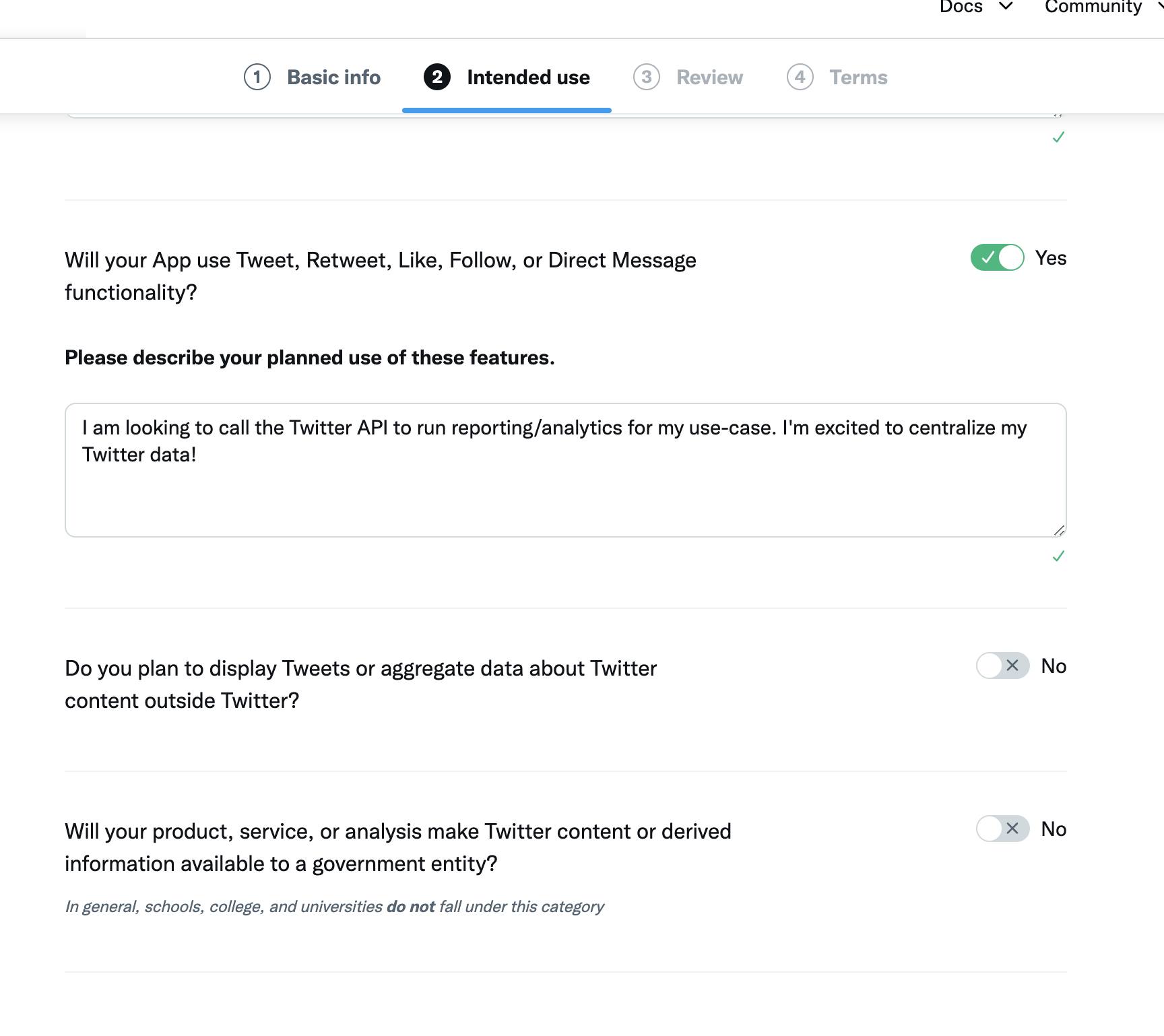
Fill the form, describing your use-case. The application is typically automatically approved, but there are minimum character requirements. Please feel free to use similar answers as below, tailored for your use-case.
Create a new project (only required for API V2)
- On your developer dashboard click New Project.
- Enter a project name, description and use case.
- Click on the project name on your dashboard.
- Attach the app that you’ve created to your project.
Step 3. Apply for Ads API Access (only required for X API)
- Go to the Ads API Application Form .
- Complete the application questions listed below:
-
Of the following, which best describes your business? Advertiser
-
How will you use the Ads API? Analytics
-
What do you plan to build on the Ads API? Provide access for Etleap (X app ID 17321464)
-
Describe your unique differentiators in the Ad Tech ecosystem. Not applicable; we are not Ad Tech, only pulling our own data.
-
Does your product currently use or plan to utilize any other X APIs? No, unless you do for reasons unrelated to Etleap.
-
Do you license data from X’s Data APIs? No, unless you do for reasons unrelated to Etleap.
-
Step 4. Obtain your Credentials
- Access X’s developers portal app page and go to your App Page.
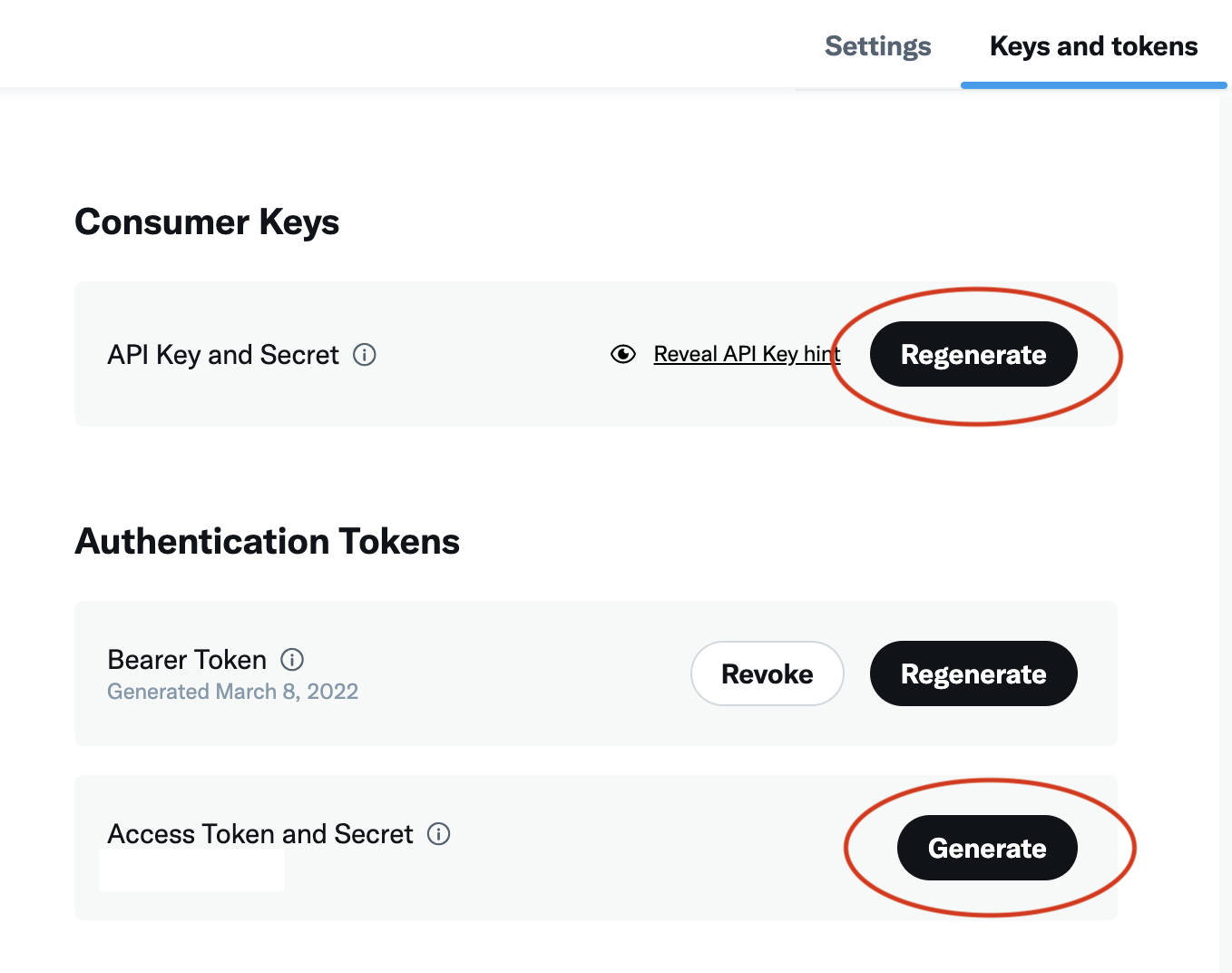
- Under the Keys and Tokens tab, click Generate/Regenerate an
API Key and Secretand anAccess Token and Secret. You will need these values to create a X connection in Etleap.
Prefer using an API? Go here and select X under the Body header to start creating your connection via API.
What Data is Available?
Update-Mode Deletes Support
Deletes are not supported for update-mode entities with this connector.
You can create X pipelines with the following entities:
API Access Levels
Please note that all entities under the v2 API require at least Basic level access to the X API to create pipelines from them.