Zoom Phone
Zoom Phone connections give you access to your company’s voice call and communication data.
Source Setup
Etleap uses OAuth to authenticate with Zoom Phone. Please perform the following steps within your Zoom Phone account to enable API access.
Step 1. Create your OAuth App
-
Sign in to your Zoom Phone account and access Zoom Marketplace .
-
Click Develop in the drop-down menu at the top-right corner of the Main Page.
-
Select Build App to find your available app types.
-
Select General App → Create.
-
You may change the app name by clicking the pencil icon on the top left side.
-
-
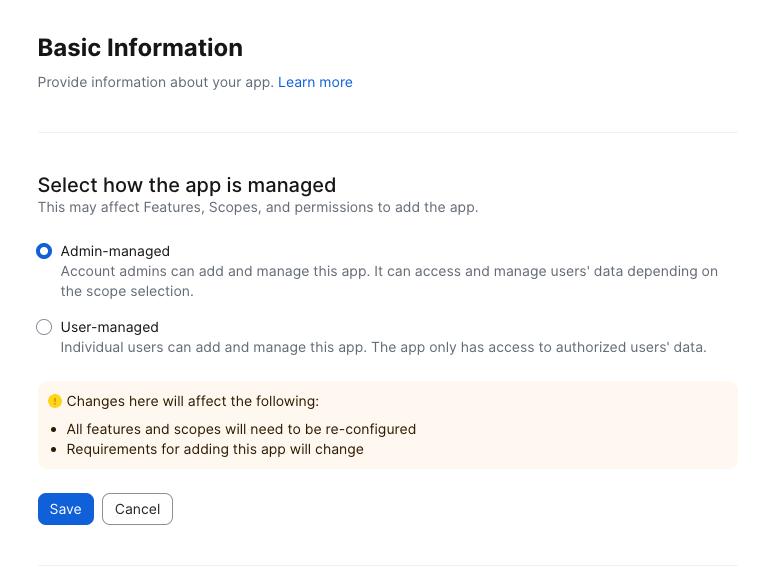
In the Basic Information Tab, select Admin-managed for how the app is managed, then click Save
-
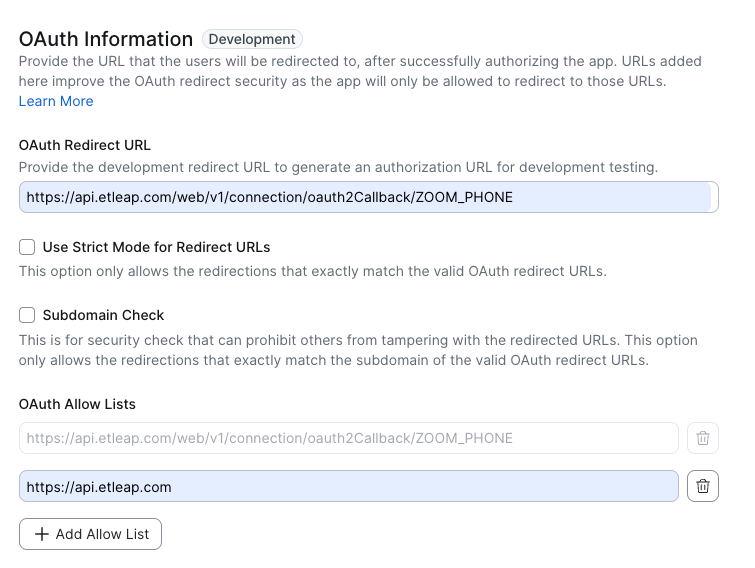
Scroll down to OAuth Information
- Fill Redirect URL for OAuth with https://api.etleap.com/web/v1/connection/oauth2Callback/ZOOM_PHONE .
- Fill Add allow lists with https://api.etleap.com
Step 2. Add Scopes
-
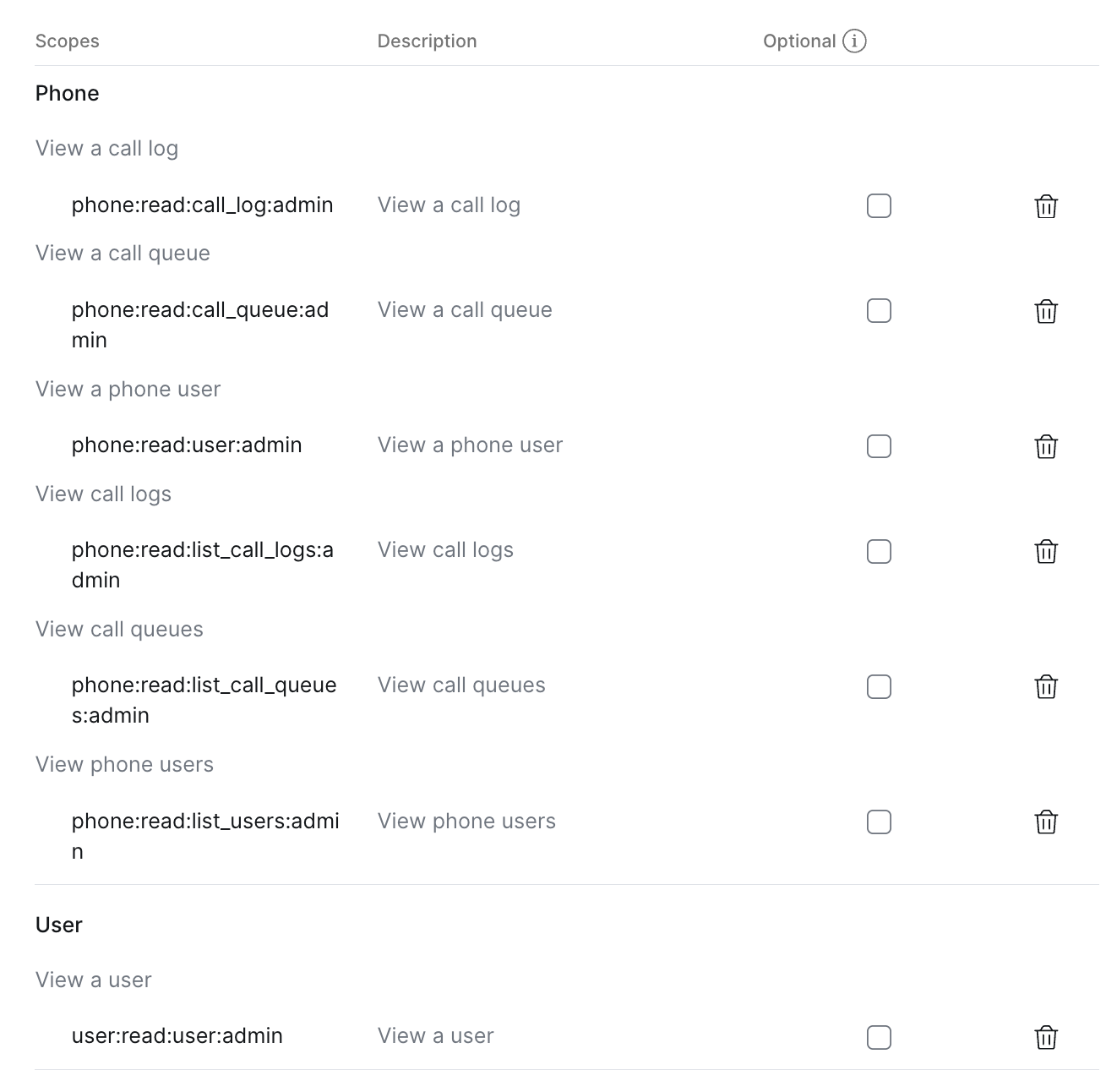
On the left side, select the Scopes tab. Click Add scopes and add the following permissions:
- Under Phone:
- View a call log:
phone:read:call_log:admin - View a call queue:
phone:read:call_queue:admin - View a phone user:
phone:read:user:admin - View call logs:
phone:read:list_call_logs:admin - View call queues:
phone:read:list_call_queues:admin - View phone users:
phone:read:list_users:admin
- View a call log:
- Under User:
- View a user:
user:read:user:admin
- View a user:
- Under Phone:
Create the connection
You will need to access the Client ID and Client secret values when creating a connection in Etleap. These are available in the left side, under your app name.
Use the Development app credentials to create the connection in Etleap, as Production credentials require the app to be published in the Marketplace and would make it available to the public.
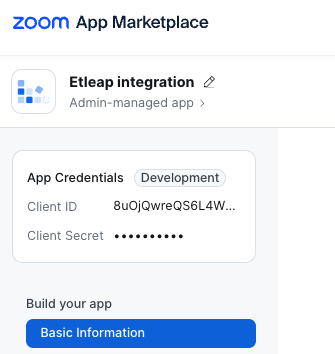
Input the Client ID and Client Secret in the Etleap connection page then click Authorize Access, you’ll be redirected to Zoom for authentication. The authenticating user must be an Admin or assigned a role allowed with the same scopes. For more information about Role Management, click here .
Prefer using API? Go here and select Zoom Phone under the Body header to create a connection via API.
What Data is Available?
Update-Mode Deletes Support
Deletes are not supported for update-mode entities with this connector.
You can create Zoom Phone pipelines with the following entities:
| Entity | Pipeline Mode | Iceberg Support |
|---|---|---|
| Call Queues | Replace | Batch |
| User’s Profile | Replace | Batch |
| Phone Calls | Update |
Key Considerations
- Zoom Phone API only returns data from the last six months from the extraction date.
- In order to maintain historical data, Etleap doesn’t delete old data from phone calls when refreshing the pipeline since it is possible to have data older than six months.
- The Zoom Phone tokens have an expiration time of one hour, limiting the extraction interval to one hour max.