Create a Pipeline
What is a Data Pipeline in Etleap?
Data pipelines fetch data from a source and feed it into a destination warehouse or data lake, where you can later access it for analysis, e.g. using a BI tool. Not only does the pipeline transfer the data, but it can also transform the data to make it better fit with your needs.
An Important Prerequisite
Before you can set up a pipeline, you must first set up a source and a destination.
Step-by-step Tutorial
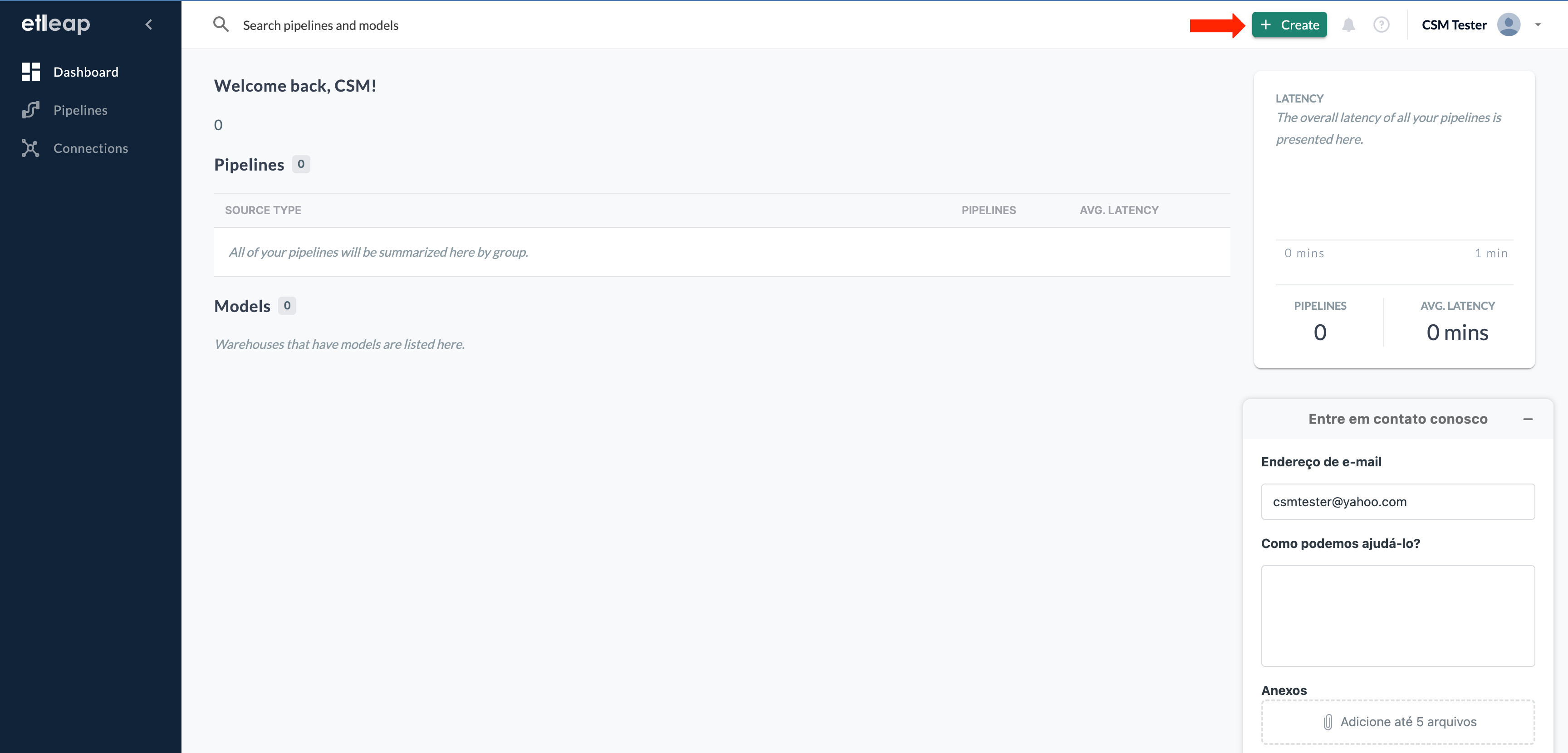
First of all, sign in into your Etleap account. To create a pipeline, you can use the “+Create” button in the top panel.
Selecting the Source
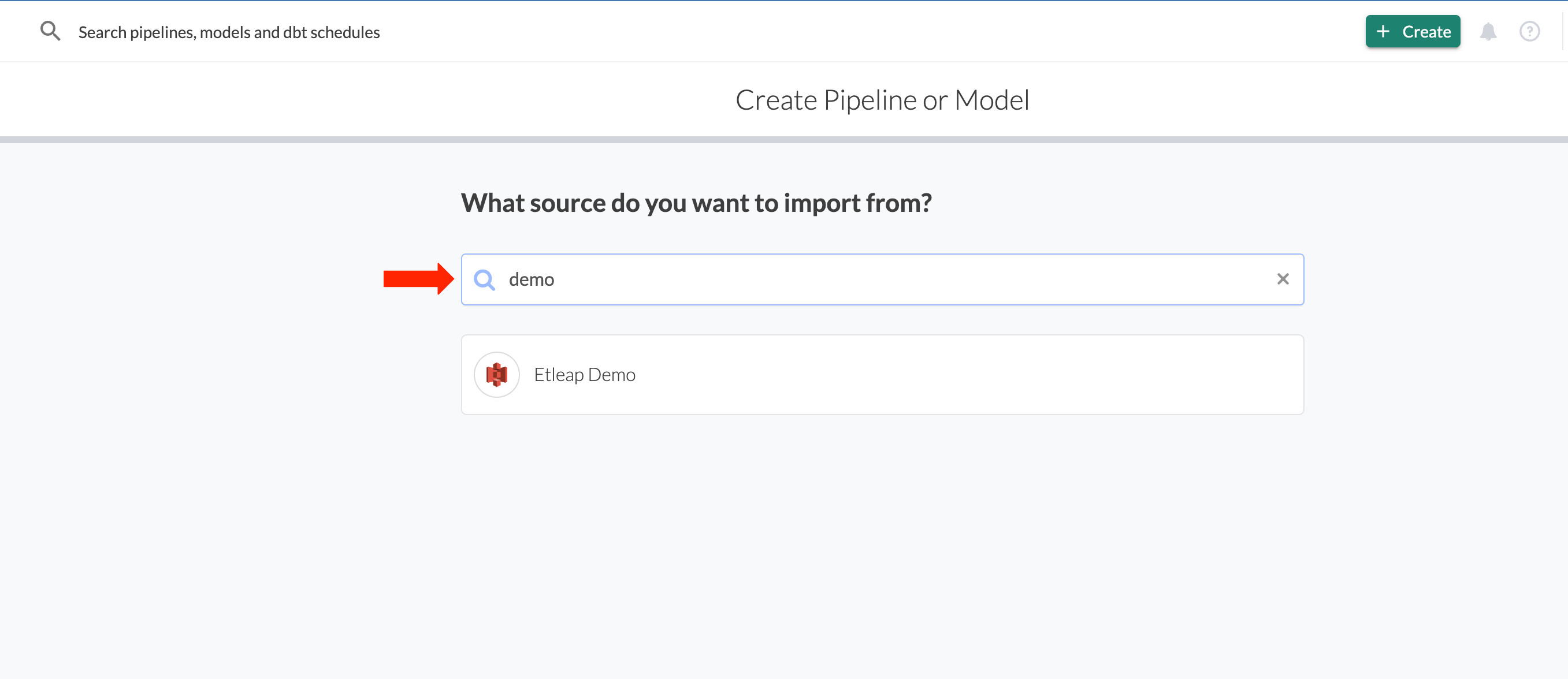
When you click on ”+ Create,” the interface will prompt you to select one of the available sources.
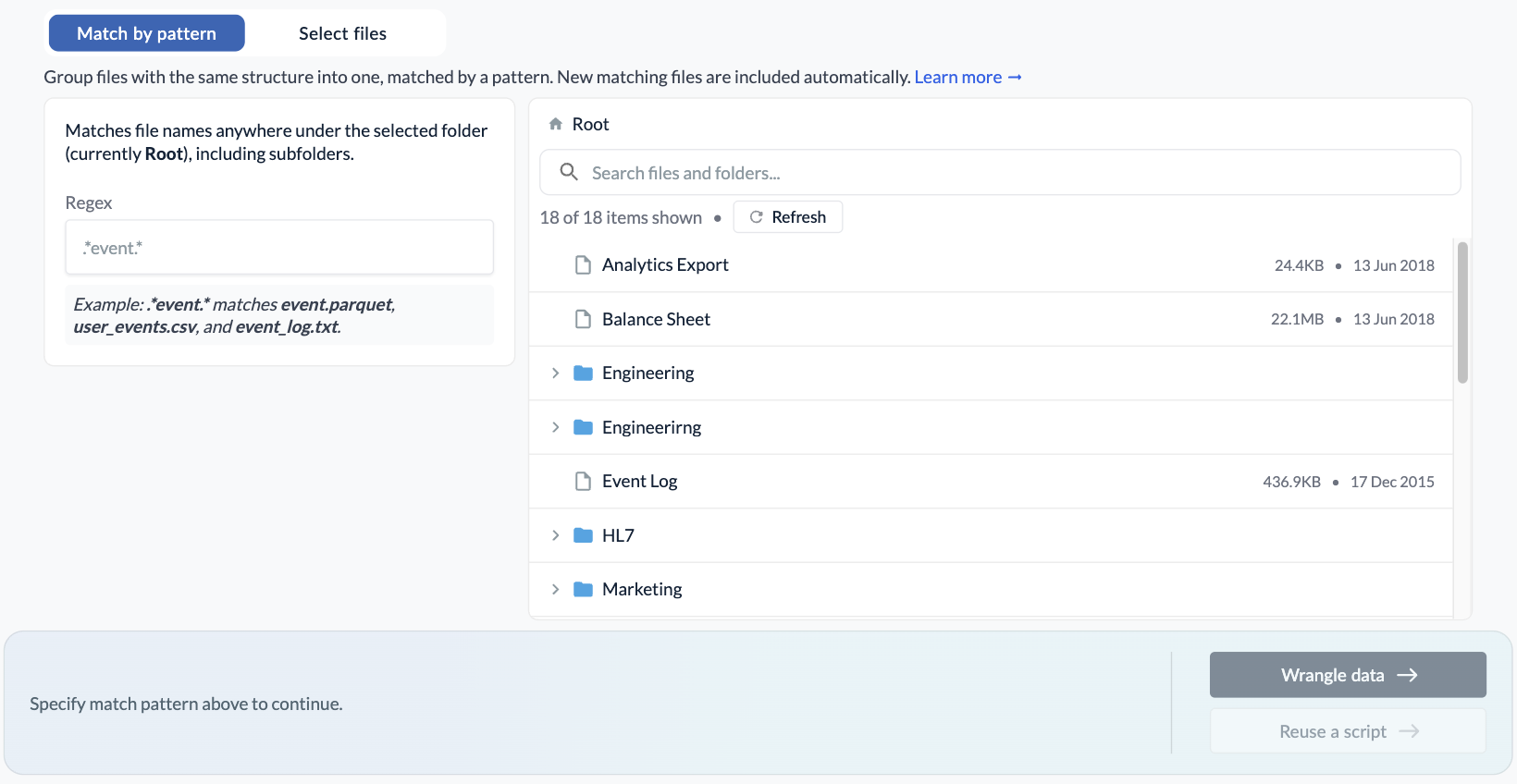
Once you’ve picked your source, the file picker opens at the source’s root directory. Click a folder to open it, and use the breadcrumb at the top to go back up. Use the search box to find a file or folder by name, and the Refresh button if you don’t see files you’ve uploaded to the source recently. Searching narrows what the listing shows; it has no effect on which files the pipeline fetches.
The two tabs above the listing give you the option to fetch files by a path or by individual selection of files.
Match by Pattern
Open the folder you want to read from and type a regular expression in the Regex field. Compatible sources also offer a Glob field which accepts glob patterns. Etleap fetches every file under that folder whose name matches, and keeps fetching new files as they arrive. The file listing on the right shows which files qualify for your pattern, allowing you to validate your pattern.
Select Files
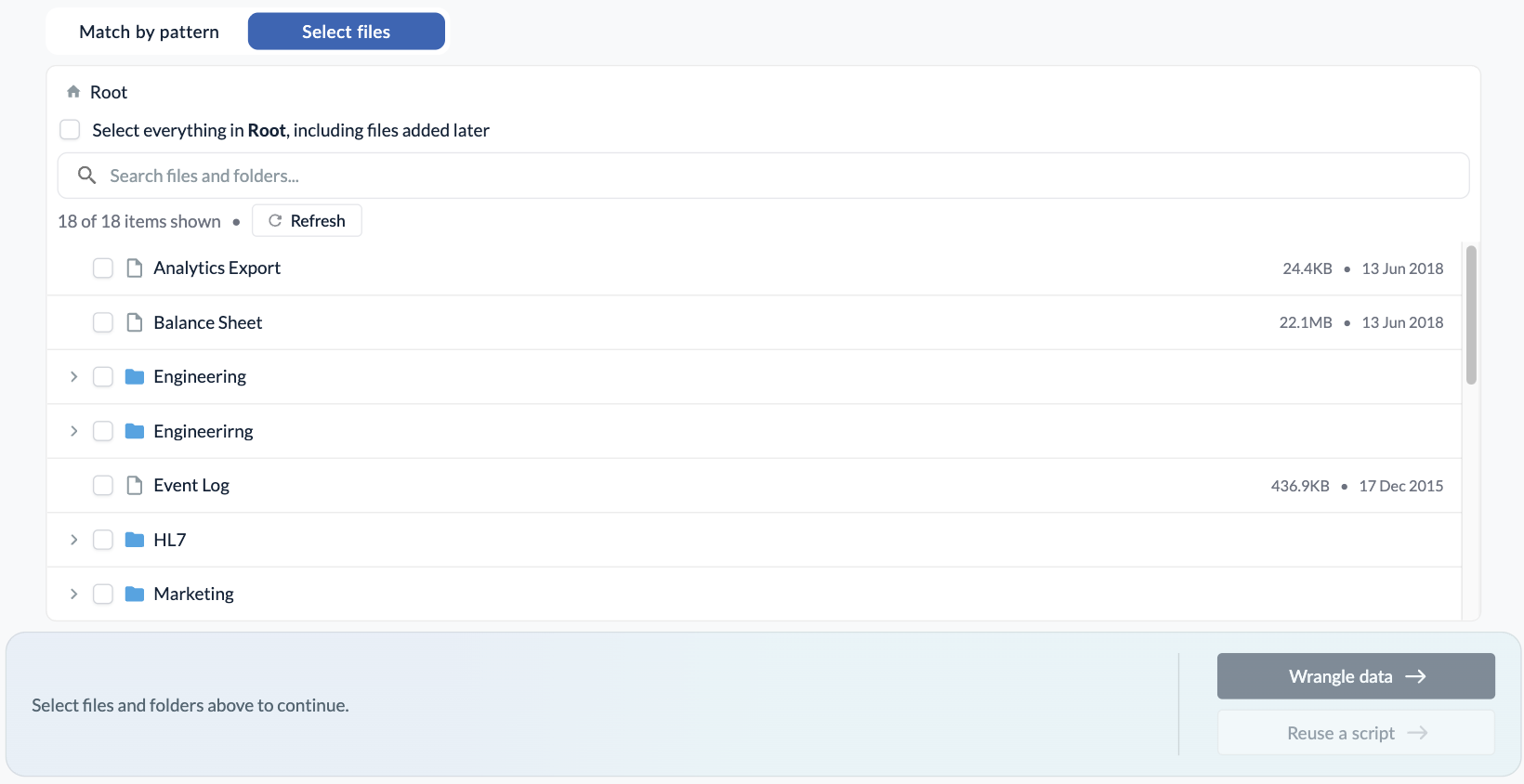
Individually select the files you want to ingest, or select a folder to ingest its contents. The Select everything in folder checkbox above the listing selects every file from your current directory. When files are selected individually, the pipeline ingests only the selected files. A file that’s added after pipeline creation will only be ingested if it lands in a folder that you’ve selected to include in the pipeline.
Which Tab Should I Use?
Use Match by pattern when your filenames contain identifying information that can be linked to a specific pipeline, such as a daily event export where every file is named events-<date>.json.
Use Select files when you need to ingest a fixed set of files, or the contents of an entire folder.
Once you’ve finished selecting which files to ingest, click Wrangle data and you’ll be taken to the Wrangler.
Data Wrangling
The Wrangler shows you a sample of your data and invites you to transform it. On the left, the preview shows first rows of your raw data. On the right, you have the editor where you can add steps that modify your data.
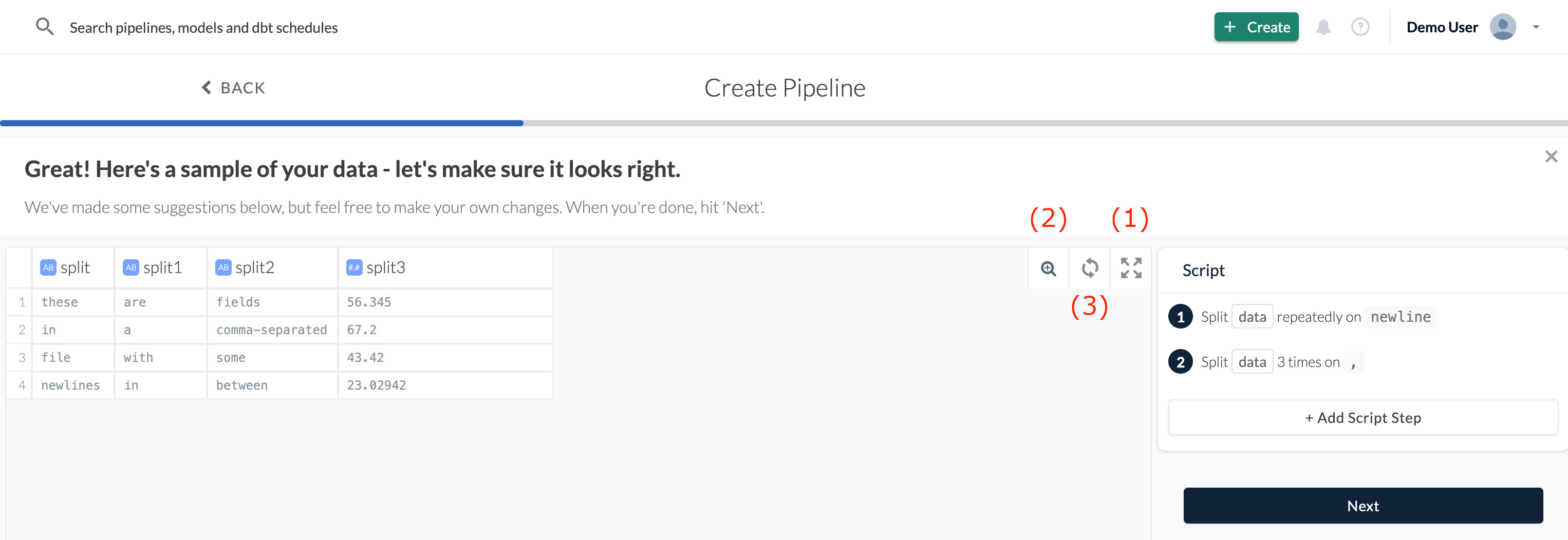
By clicking on (1), you can enter or exit a full-screen mode. If you have a lot of columns, you can jump to any of them quickly by using the magnifier (2) and typing in the column name. The Refresh Sample button (3) fetches a new sample.
Advanced Column Preview
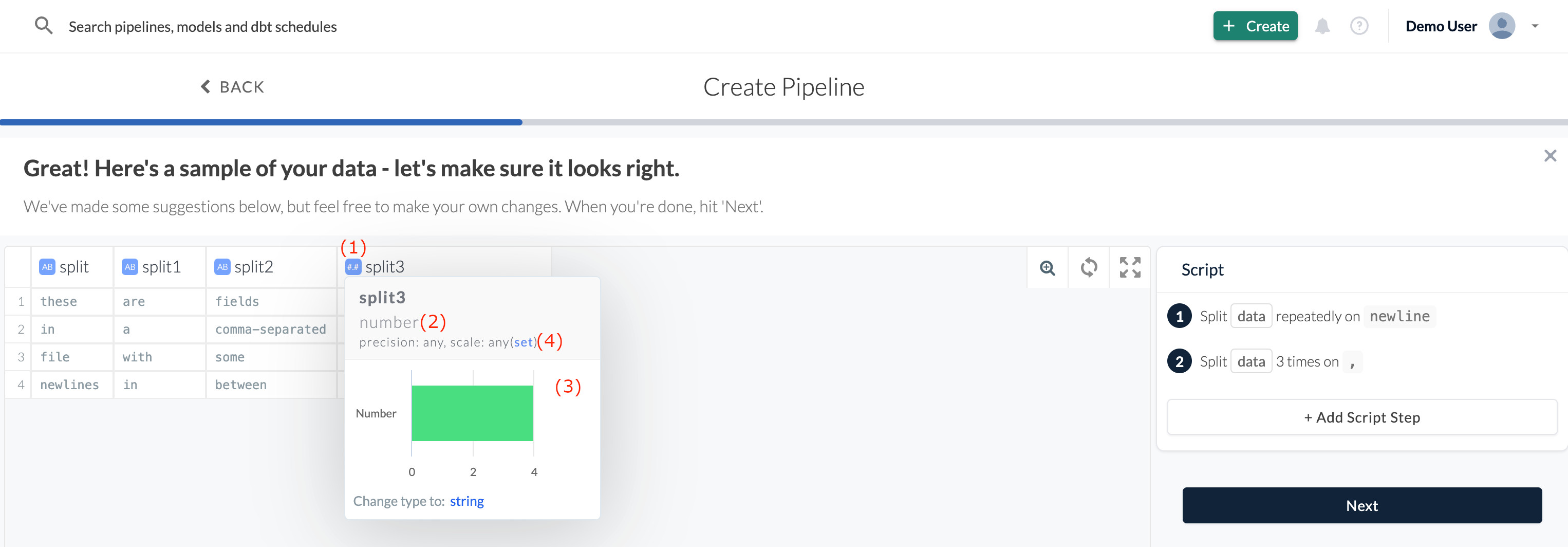
When you click on the icon in the column header (1), you’ll see the current data type (2). It will also show you other potential types, with charts showing how many rows cannot be converted to that type (3), and an option to change the maximum length of the column (for string or numeric types) (4).
Transforms
Etleap will automatically add initial transformations based on the data sample. Later, you can practice with advanced data wrangling described in the Wrangler section of the documentation.
When you are finished with wrangling your data, click “Next”.
Selecting the Destination
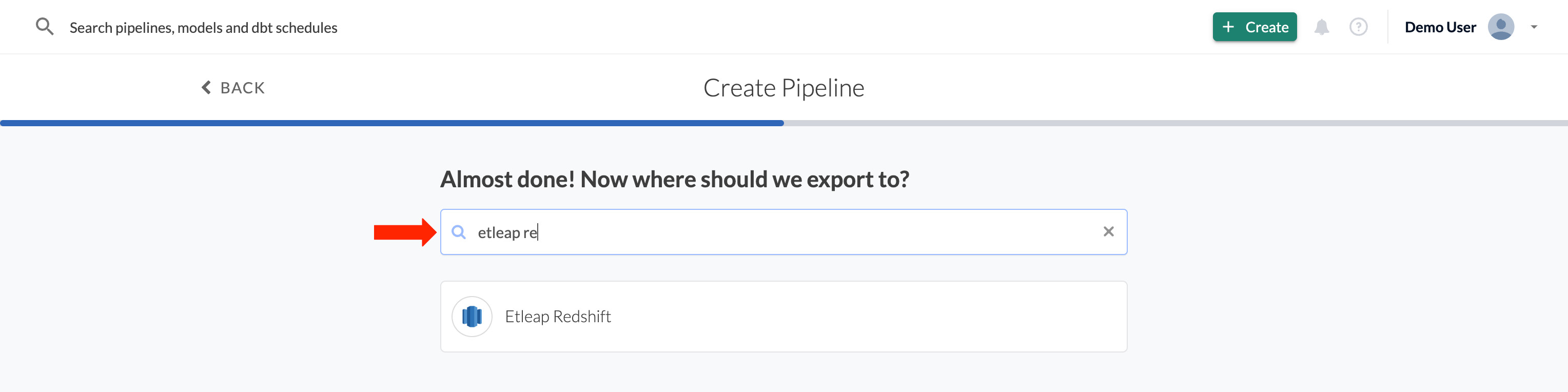
You’ll be shown a list of destinations you can export your data to. Then, select the schema, choose the table name and a memorable pipeline name.
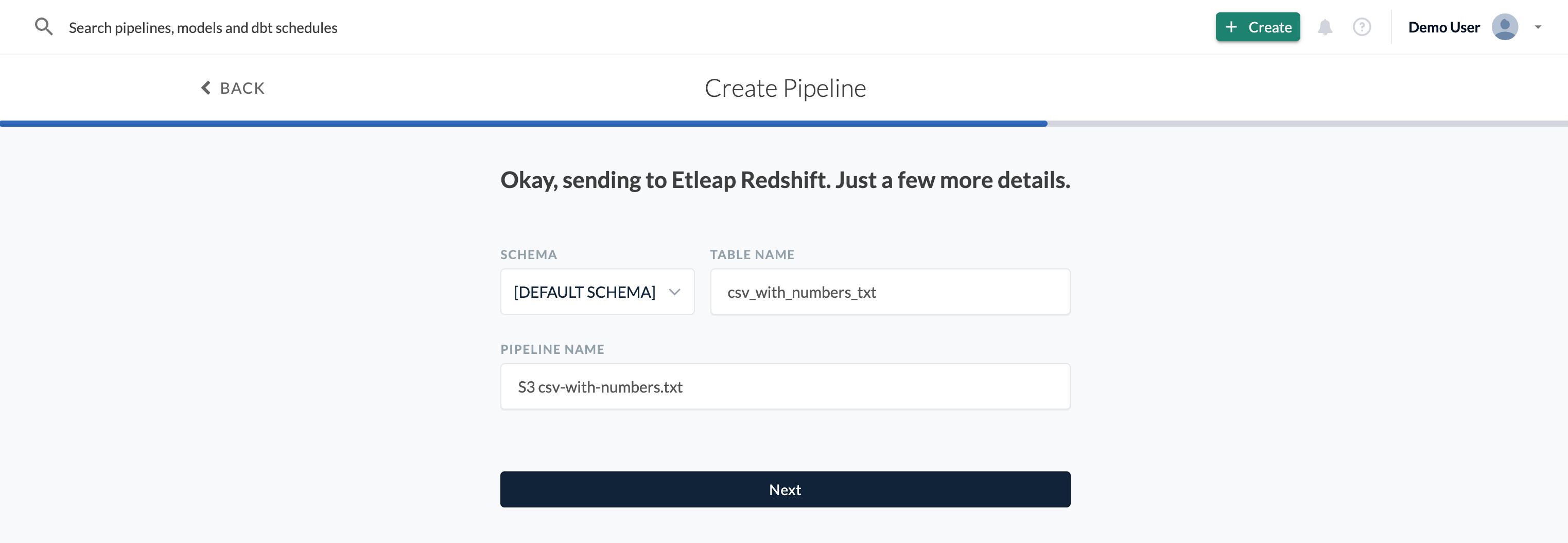
Source and Destination Additional Configurations
Optional: The default source and destination configurations are usually fine, but you can also change the source or destination settings manually.
Hit “Start ETL’ing”!
Your pipeline is now ready to go and will begin ingesting your data! To learn more about pipeline execution statuses, see Understanding the State of a Pipeline.